Introduction
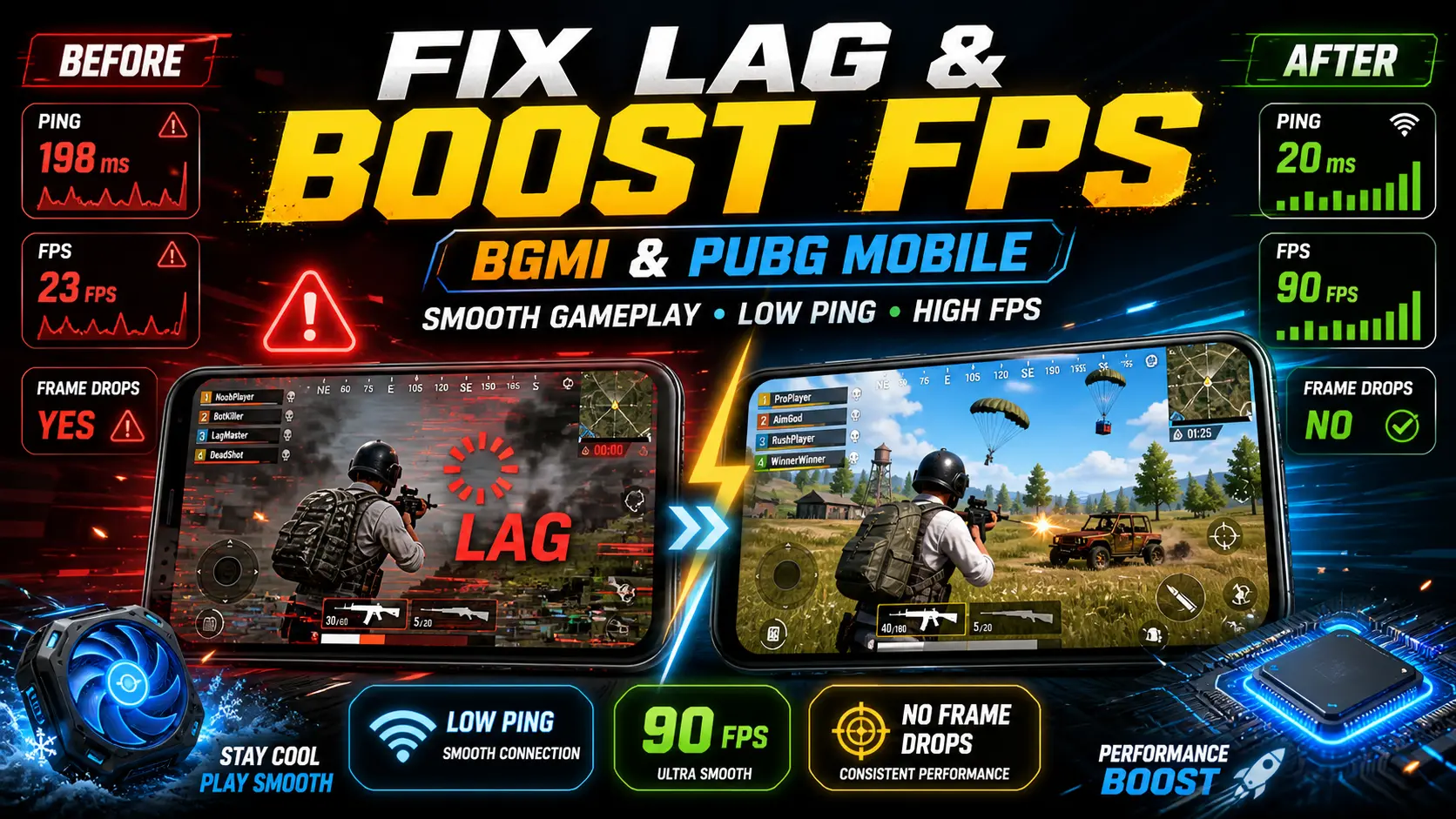
Even the most powerful phones can suffer from sudden lag, high ping or frame‑rate drops when playing BGMI or PUBG Mobile. These performance issues are frustrating in a competitive battle royale, but they’re often avoidable if you understand the root causes and how to optimise your settings. This article looks at common reasons for lag and provides step‑by‑step instructions to improve FPS, reduce stutter and make your matches smoother.
Why Does Lag Happen?
Lag and low FPS in BGMI often occur because the device hardware struggles to render high graphics, too many background apps are running, the internet connection is unstable, software is outdated or the device is overheating. Low RAM or storage space and poor network conditions can also increase ping and cause rubber‑banding. Identifying these factors helps you target the right fixes.
Optimal Graphics Settings
The quickest way to reduce lag is to choose the right graphics options:
- Graphics: Set to Smooth or Balanced to reduce resource load.
- Frame Rate: Choose Extreme or Ultra where available; this can improve responsiveness even if the graphics are lowered.
- Disable Anti‑Aliasing and Shadows: Turn off anti‑aliasing, shadows and auto‑adjust graphics to lighten the GPU load.
- Resolution: Avoid UHD settings on mid‑range phones; choose HD or Balanced and adjust if stuttering occurs.
After applying these settings, test the game in training mode to ensure the device remains cool and stable during extended play.
Clear Cache and Close Background Apps
If lag continues, check for software issues:
- Clear BGMI cache and data: Navigate to your phone’s settings, open Apps > BGMI/PUBG Mobile > Storage and select Clear cache.
- Close background apps: Use your system’s task manager to close unused apps. Running applications consume RAM and CPU resources, causing lag.
- Restart the device: A quick reboot clears temporary files and refreshes system resources.
Enable Game Mode and Optimisations
Most modern phones include a gaming mode that prioritises resources for games:
- Samsung’s Game Launcher, Xiaomi’s Game Turbo and similar utilities can boost FPS by allocating extra CPU/GPU resources and blocking notifications.
- In some phones you can adjust network priority or enable a “Performance” profile to maintain stable ping.
- Consider using a cooling pad or enabling high‑performance mode when plugged in to prevent thermal throttling.
Other Tips for Smooth Gameplay
- Stable internet: Connect to a 5 GHz Wi‑Fi network or choose a server with the lowest ping. Avoid playing on mobile data if the signal is weak.
- Update software: Keep BGMI/PUBG Mobile and your phone’s system software up to date; patches often fix optimisation issues.
- Free storage: Maintain at least 3–5 GB of free space to allow caching and avoid slow‑downs.
- Overheating: Remove bulky cases and avoid playing while charging to reduce heat build‑up.
Conclusion
By adjusting graphics settings, clearing cache, shutting down background apps and using built‑in game optimisation tools, you can significantly reduce lag and stabilise FPS in BGMI and PUBG Mobile. Combine these steps with a solid internet connection and regular software updates for the smoothest possible battle royale experience.